# SAPSAN Domovik Documentation

SAPSAN Domovik is a handheld hidden camera and WiFi bug detector. It finds camera lenses optically with **AI Vision** and listens for cameras and bugs that transmit over WiFi with **Wi-Fi Trace**. Both modes run on a 2.4-inch touchscreen, with no app, no account and no internet connection. Domovik is designed and sold by SAPSAN for people who check hotel rooms, rentals, offices and their own homes.
## Table of Contents
1. [Introduction](#introduction)
2. [Package Contents](#package-contents)
3. [Device Overview](#device-overview)
4. [Technical Specifications](#technical-specifications)
5. [Quick Start Guide](#quick-start-guide)
6. [Wi-Fi Trace: Scanning for Wireless Cameras and Bugs](#wi-fi-trace-scanning-for-wireless-cameras-and-bugs)
7. [AI Vision: Finding Camera Lenses](#ai-vision-finding-camera-lenses)
8. [Settings](#settings)
9. [Check a Room in 10 Minutes](#check-a-room-in-10-minutes)
10. [Where Cameras Hide](#where-cameras-hide)
11. [Looks Like a Camera, But Is Not](#looks-like-a-camera-but-is-not)
12. [You Found a Camera: What Now](#you-found-a-camera-what-now)
13. [Tips From Practice](#tips-from-practice)
14. [Maintenance and Safety](#maintenance-and-safety)
15. [Firmware](#firmware)
16. [FAQ](#faq)
17. [Support](#support)
## Introduction
A hidden camera needs three things: a view of the bed, the shower or the desk, a power source and an object nobody touches. Domovik attacks the problem from two sides.
- **AI Vision** looks for the lens itself. A ring of LEDs around Domovik's camera lights up the target, a lens reflects the light back as a small bright dot, and the on-board image analysis marks it on the screen. This works on any camera with a lens, including cameras that are switched off, record to a memory card or use no network at all.
- **Wi-Fi Trace** listens to the WiFi bands (2.4, 5.2 and 5.8 GHz). It picks up devices that transmit nearby, compares what they send with known camera behaviour and lists the suspicious ones with signal strength. You then walk towards the strongest signal and confirm with your eyes or with AI Vision.
Domovik stores nothing in the cloud and does not connect to any network. Scan results stay on the device and disappear when you start a new scan.
!!!info Detection results are indications
Every detector gives you a lead, not a verdict. A reflection can come from a screw head, a strong WiFi signal can be the neighbour's router. Domovik tells you where to look. The final check is always a look at the spot with your own eyes.
!!!
## Package Contents
- SAPSAN Domovik detector (built-in WiFi scanner, 2.4-inch touchscreen, detection camera with LED ring, rechargeable battery)
- USB-C charging cable
- Printed quick guide (PL, EN, DE, CS) with a QR code to this documentation
## Device Overview
Front: 2.4-inch touchscreen with the two modes, power button below the screen, blue light strips on the sides.Back: detection camera surrounded by the LED ring. In AI Vision the ring glows red and lights up the inspected area.Side: USB-C port for charging. The WiFi antenna is built in.
| Element | What it does |
|---|---|
| Power button | Hold for 3 seconds to switch Domovik on or off. |
| Touchscreen | All operation: choosing a mode, reading results, settings. |
| Detection camera and LED ring | AI Vision. The ring lights the scene, the camera looks for lens reflections. |
| Side light strips | Status and alert light. |
| USB-C port | Charging. Use a charger of up to 5 W. |
| Serial number | Printed on the back of the device. Keep it for warranty and support. |
## Technical Specifications
| Parameter | Value |
|---|---|
| Model | SAPSAN Domovik |
| Manufacturer | SAPSAN CYBERSEC sp. z o.o., Poland |
| Country of manufacture | China (manufactured to the order of SAPSAN CYBERSEC sp. z o.o.) |
| Detection modes | AI Vision (optical lens detection), Wi-Fi Trace (WiFi signal scan) |
| Smallest detectable lens aperture | 1 mm |
| Optical detection distance | about 1.5 m |
| Detection camera | 2 MP |
| WiFi bands | 2.4 GHz, 5.2 GHz, 5.8 GHz |
| WiFi standards | 802.11 a/b/g/n/ac/ax (Wi-Fi 3 to Wi-Fi 6) |
| Receiver sensitivity | −90 dBm |
| WiFi scan range | 0.1 to 6 m |
| Antenna | built-in omnidirectional dual-band, 3 dBi |
| Display | 2.4-inch touchscreen, 640 × 480 px |
| Alerts | on-screen, vibration, buzzer (selectable) |
| Battery | 1000 mAh lithium-ion, rechargeable |
| Charging | USB-C, up to 5 W |
| Operating conditions | −10 °C to 45 °C, 40 to 70 % RH |
| Dimensions | 106 × 63 × 34 mm |
Detection distances and sensitivity depend on the environment: walls, the number of networks around you, the lens coating and the lighting. Treat the values as a reference, not a guarantee.
## Quick Start Guide
1. **Charge the battery.** Connect the USB-C cable to a charger of up to 5 W. A full battery lasts a day of occasional checks.
2. **Switch on.** Hold the power button for 3 seconds. The home screen shows two buttons: **AI Trace** (the WiFi scan behind Wi-Fi Trace) and **AI Vision**, with the settings gear in the top-left corner.
3. **Reduce interference.** Switch off WiFi, Bluetooth and the hotspot on your own phone and pause downloads on your laptop. Fewer of your own signals means a cleaner scan.
4. **Scan the air.** Tap **AI Trace**, hold Domovik in front of you and walk slowly around the room. Wait for the scan to finish.
5. **Scan the objects.** Tap **AI Vision**, dim the lights and sweep the LED ring over everything that faces the bed, the shower or the desk from 1 to 1.5 m.
6. **Switch off.** Hold the power button for 3 seconds. Charge the device after use so it is ready for the next trip.
Home screen. The gear in the corner opens Settings.
## Wi-Fi Trace: Scanning for Wireless Cameras and Bugs
### How the scan works
Most consumer spy cameras stream video over WiFi, either to a phone on the same network or to a cloud server. Streaming video has a rhythm: a steady flow of packets of similar size. Domovik's WiFi receiver listens to the air channel by channel, builds a picture of every device transmitting nearby and flags the ones whose behaviour and hardware identifier match known cameras. It does not join any network and does not need the WiFi password.
The scan covers everything that transmits within reach, so a router behind the wall or a smart TV can appear in the list. That is why the result is a list of suspects with signal strength, and the next step is always locating and looking.
### Running a scan
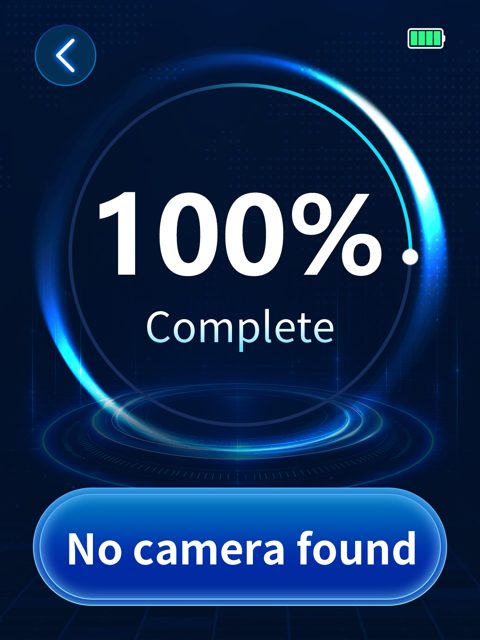
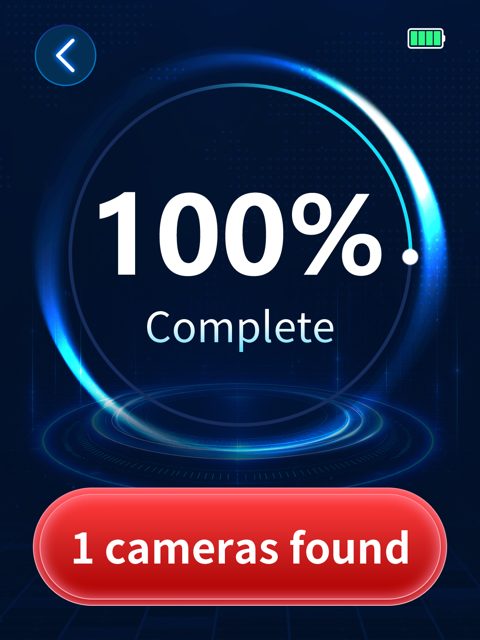
1. Tap **AI Trace** on the home screen. The progress ring shows the two phases: listening to the WiFi channels, then analysing what was captured.
2. Keep moving slowly during the scan. Walk along the walls and past the furniture, with the screen facing you.
3. Wait for **100 % Complete**. A fast scan takes about 140 seconds, an enhanced scan about 270 seconds (see [Scan Mode](#scan-mode)).
Nothing suspicious transmitting nearby: No camera found.A suspect: the red button shows how many. Tap it to open the list.
### Reading a suspect
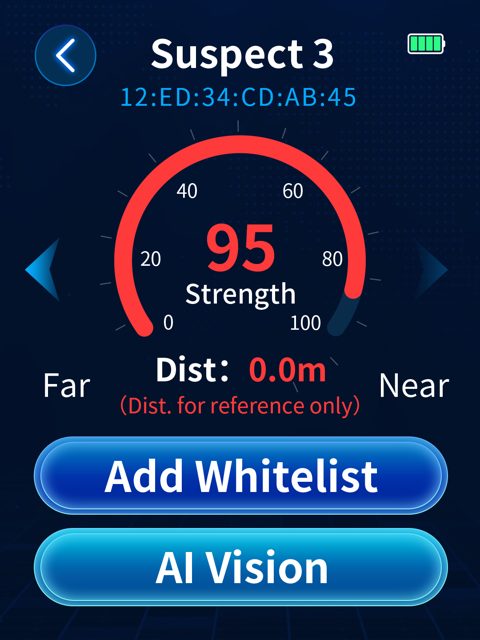
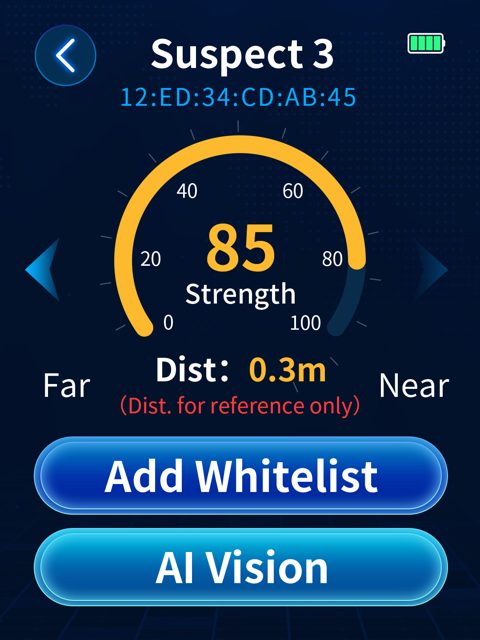
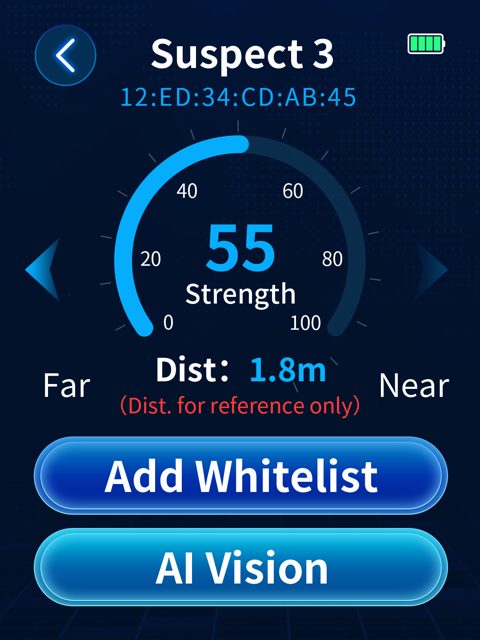
Tap a suspect to open its details: the suspect number, the device's MAC address, the signal strength on a 0 to 100 gauge and an estimated distance. The distance is a rough guide only; the strength and its colour are what you navigate by.
| Gauge colour | Meaning | What to do |
|---|---|---|
| Red | You are next to the source. | Inspect everything within arm's reach: sockets, chargers, decorations, vents, the router. |
| Orange | You are getting closer, but not there yet. | Keep walking slowly towards a stronger reading. |
| Blue | The source is probably in another room, upstairs or downstairs. | Check whether the signal grows when you approach a wall or the ceiling. If not, it is most likely outside the room. |
Red: the source is right here.Orange: closer, keep moving.Blue: probably behind a wall or on another floor.
### Locating the source
1. Open the suspect and watch the strength while you walk. Move slowly, half a step at a time, and pause after each step so the reading settles.
2. When the gauge turns red, stop. The source is within reach. Check the objects around you one by one.
3. Tap **AI Vision** at the bottom of the suspect screen to switch straight to the optical check and look for the lens in that spot.
4. Known device? Tap **Add Whitelist**. Your own router, TV or speaker will then be skipped in future scans.
### Why a scan can come back empty
A clean Wi-Fi Trace result means nothing nearby was transmitting like a camera during the scan. Three situations are worth knowing about:
- **The camera is not transmitting right now.** Many cameras only stream when someone opens the app or motion is detected. Between those moments they send a few keep-alive packets a minute, which is not enough to build a signature. Run the scan again later, or run an enhanced scan, and always follow up with AI Vision.
- **The camera records locally.** A device that writes to a memory card and never transmits is invisible to any radio scanner. AI Vision finds it by the lens.
- **The camera uses a cable.** Wired cameras do not appear on WiFi. Again, AI Vision.
This is the reason Domovik has two modes. Use both, every time.
## AI Vision: Finding Camera Lenses
### How it works
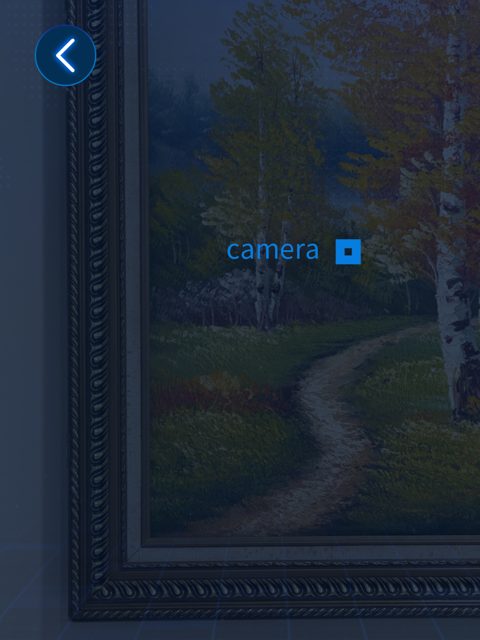
A camera lens is a small, polished, curved piece of glass or plastic. Light that hits it is reflected straight back towards the source. Domovik's LED ring sends light out, its camera sees the scene, and the image analysis looks for the small bright, round, stationary reflection that a lens produces. When it finds one, it draws a marker labelled **camera** on the live view and alerts you.
AI Vision in action: the LED ring lights the object, the lens reflection is detected and marked on the screen.
### Running an optical check
1. Dim the room. Close the curtains and switch off the lamps. The darker the room, the brighter the reflection stands out.
2. Tap **AI Vision**. The LED ring glows red and the live view appears on the screen.
3. Hold Domovik 1 to 1.5 m from the object and move slowly. A lens reflects only within a narrow angle, so sweep each object from a few directions.
4. Watch for the marker. When a bright, regular, stationary point appears, Domovik marks it with a frame labelled **camera** and alerts you (vibration or buzzer, as set).
5. Verify. Walk up to the marked spot and look at it closely. A lens is a tiny dark circle, often behind a pinhole, that keeps glinting as you move. Glass ornaments, screw heads and metal fittings reflect too, but as a larger or irregular blob that changes with the angle.
A detected lens on the live view. The label and the frame follow the reflection.
!!!tip Two passes beat one
Do a quick first pass over the whole room to see what lights up, then a slow second pass over the objects that face the bed, the shower and the desk. Spend 30 to 60 seconds on each suspicious object.
!!!
## Settings
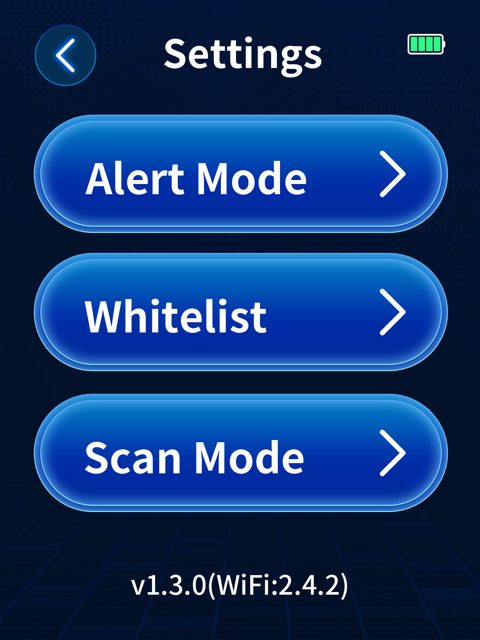
Tap the gear on the home screen. The firmware version is shown at the bottom of the Settings screen (for example `v1.3.4`).
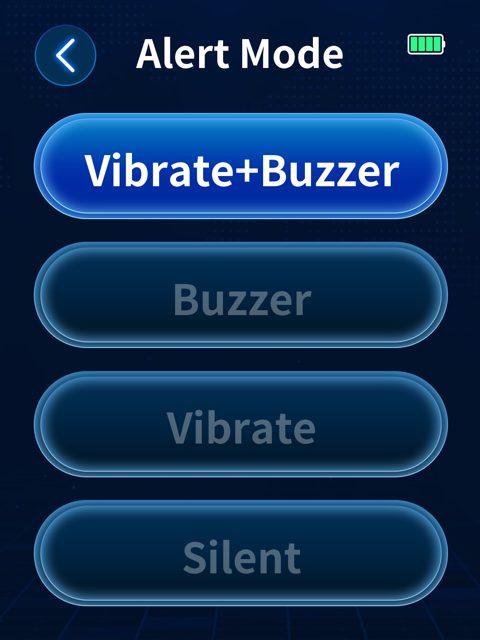
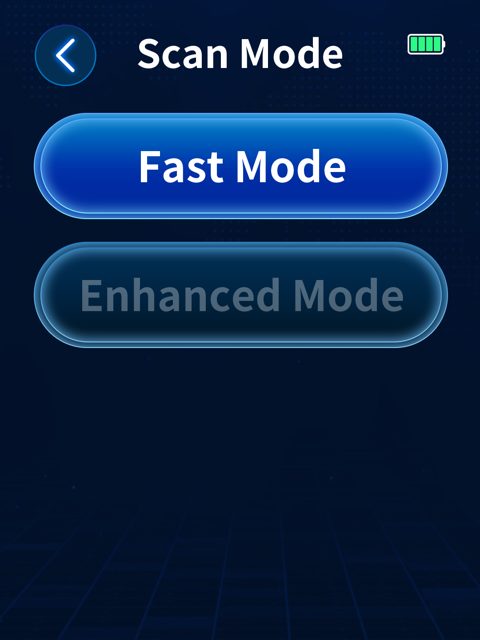
Settings with the firmware version at the bottom.Alert Mode.Scan Mode.
### Alert Mode
How Domovik tells you about a detection: **Vibrate+Buzzer**, **Buzzer**, **Vibrate** or **Silent**. Vibrate is the discreet choice in a hotel corridor or an office; Silent leaves only the on-screen marker.
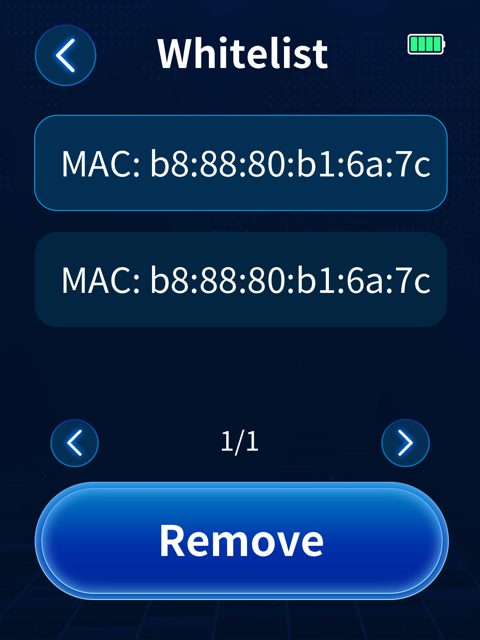
### Whitelist
Devices you have marked as trusted from a suspect screen. They are skipped in future scans. Select an entry and tap **Remove** to put it back into the scan. Use the whitelist at home or in your office for your own router, TV and speakers; keep it empty when you check a place you do not know.
Whitelisted devices are listed by MAC address.
### Scan Mode
| Mode | Duration | When to use |
|---|---|---|
| Fast Mode | about 140 s | A quick first check of a room, places with few networks around. |
| Enhanced Mode | about 270 s | Dense buildings with many networks, a room you want to be sure about, or when a fast scan came back empty and you still have doubts. The scanner spends twice as long on each channel. |
## Check a Room in 10 Minutes
Do it right after you walk in, before you unpack. Leave the luggage by the door.
| Time | Step | With Domovik |
|---|---|---|
| 0:00 | **Do not unpack.** You check the room before you get changed in it. | Switch Domovik on, phone WiFi and Bluetooth off. |
| 0:30 | **The air.** Cameras often stream over WiFi. | Run **AI Trace** and walk slowly around the room with the screen in front of you. Note every suspect and where the signal is strongest. |
| 3:00 | **Lights off.** In the dark a lens reflects light the most. | Run **AI Vision**. Sweep slowly over everything that faces the bed, the shower, the toilet and the place where you get changed. |
| 5:00 | **Sight lines.** Stand by the bed, in the shower, by the toilet. | Check every object that "looks" at those spots: smoke detector, clock, chargers, frames, TV, router, vents. |
| 7:00 | **Bathroom and mirror.** Light fittings, hairdryer holder, vents. | At the mirror switch off the light and look into the glass with AI Vision, then knock: a hollow sound is a signal. |
| 9:00 | **Infrared check.** Night-vision cameras glow with LEDs you cannot see. | In the dark look around through the front camera of your phone. An infrared LED shows as a purple glow. |
| 10:00 | **Verdict.** | Clear: unpack. Something suspicious: see [You Found a Camera](#you-found-a-camera-what-now). |
Search slowly. Waving a detector quickly loses the reflections, and a slow search of one object takes 30 to 60 seconds. The complete procedure with sources and a printable wallet card is in our guide [How to find hidden cameras in a flat, a hotel and an Airbnb](https://sapsan-sklep.pl/en/blogs/articles/how-to-find-hidden-cameras).
## Where Cameras Hide
Starting with the objects reliable sources mention most often. Also check the mirror, the bookshelf and the vents.
| Spot | Why it works for a camera |
|---|---|
| Clock, alarm clock | The most often mentioned spot. A camera clock often shows the wrong time. |
| Smoke detector | Look for a hole and a memory card slot. Two detectors in a small room are a signal. Do not switch a detector off. |
| USB charger left in a socket | Hotels rarely leave chargers behind. A charger by the bed deserves a close look. |
| Socket, power strip | Shine light into the openings at an angle. |
| Lamp, light fitting | Ceiling and bathroom. A camera has been found inside a bathroom light bulb. |
| Frame, picture | Check every frame that faces the bed. |
| Plush toy | A toy eye is a ready-made spot for a lens. |
| Plant pot | Leaves hide a small hole well. |
| Air freshener, diffuser | A classic housing for a lens and a battery. |
| Bathroom fittings | Hairdryer holder, light fitting, vent. |
| TV, set-top box | A dark panel hides a lens well. Shine into the openings. |
| Router, WiFi extender | Power and a network connection in one box. |
A camera that records to a memory card or uses another network does not appear on any WiFi list. That is why the flashlight and AI Vision step is never skipped.
## Looks Like a Camera, But Is Not
| What you see | How to tell |
|---|---|
| Glint of glass, mirror or metal | One large blob that changes with the angle. A lens glows as a small round dot and you can see it from several spots. |
| Router or objects with many holes | Reflect light in many points at once. Check hole by hole, up close. |
| Smoke detector LED | A battery detector blinks every 30 to 45 seconds. A mains-powered one glows green steadily. |
| Ceiling sprinkler | A metal bulb with a glass vial. Sprinklers have been reported as cameras more than once. |
| A camera on the WiFi list | It may be the disclosed doorbell or outdoor camera. Compare with the listing description. |
| TV remote seen by the phone camera | It glows when you press a button. Not a camera, but a good test of whether your phone sees infrared. |
## You Found a Camera: What Now
1. **Do not touch it.** Do not unplug it or take it. It is evidence.
2. **Document it.** Photos and video: the device up close and with a view of the whole room.
3. **Cover it.** A towel or a piece of clothing. If you feel threatened, leave the room.
4. **Call the police.** 112 anywhere in the EU, or your local emergency number.
5. **Report to the platform.** Airbnb: within 72 hours of finding it. Booking.com: after the police, through customer service.
6. **The host comes last.** The host may be the one behind the camera.
Installing a camera to spy on someone is a crime in Poland (art. 267 § 3 of the Penal Code), in the UK (s. 67 Sexual Offences Act 2003) and under state voyeurism laws in the USA. A crime committed in another EU country can be reported to the police at home.
## Tips From Practice
- **Learn your device at home.** Scan your own flat with your own WiFi camera streaming to your phone. You will see how a camera looks on the suspect list and how the gauge behaves as you approach it. Then whitelist your own devices.
- **Make the camera talk.** Wi-Fi Trace hears a camera when it transmits. If you suspect a specific device, give it a reason to stream: open its app, walk in front of it, then scan.
- **Enhanced Mode in blocks of flats.** Dozens of networks within reach make the fast scan noisy. Enhanced Mode listens longer and sorts the suspects better.
- **Scan twice, at different times.** A camera that uploads at night or on motion may be quiet at 3 p.m. and busy at 11 p.m.
- **Dark room, slow hands.** AI Vision rewards patience. Dim the room, hold the distance, sweep slowly and change the angle.
- **Follow the sight lines.** A camera is placed to see something. Stand where you are most private and check what looks at you.
- **Keep the lens window clean.** Wipe the detection camera and the LED ring with a soft cloth. Fingerprints scatter the light and hide weak reflections.
- **Charge before the trip.** A full battery covers a full day of checks. Charge Domovik the evening before you travel.
## Maintenance and Safety
- **Eyes.** The LED ring is bright. Do not look into it and do not point it at other people's eyes.
- **Battery.** Built-in lithium-ion. Do not open the housing, do not puncture or crush the device, do not expose it to fire or temperatures above 45 °C. Charge only with a USB charger of up to 5 W.
- **Environment.** Operate between −10 °C and 45 °C. Keep the device dry.
- **Cleaning.** Soft, dry cloth. No solvents.
- **Storage.** Charge to about half before storing for weeks. Charge every three months.
- **Legal use.** Use Domovik only in places you own, rent or are authorised to inspect: your home, your hotel room, your office. Never use it to intrude on other people's privacy.
- **Disposal.** Do not dispose of the device with household waste. Return it to an electronics collection point.
## Firmware
Every Domovik leaves SAPSAN with the current firmware. The version is shown at the bottom of the Settings screen. Updates are prepared by SAPSAN; when one is available for your unit, we publish the procedure here. Suggestions and reports from users, including camera models that should be recognised, feed directly into future versions.
## FAQ
**Can my phone find a hidden camera?**
The phone camera helps with the infrared check and a flashlight helps with reflections, but studies of "camera detector" apps show they react to every glint. Domovik is built for the job: the LED ring brings out the lens reflection and AI Vision marks it, while Wi-Fi Trace adds a check of the wireless traffic.
**Does Domovik need WiFi or an account?**
No. It does not join any network, does not need a password and does not send anything anywhere. Everything happens on the device.
**Will Wi-Fi Trace show every WiFi device in the room?**
It shows the devices that transmit during the scan and flags the ones that behave like cameras. Your own phone and laptop are the most common extra entries, which is why you switch their radios off before scanning.
**What does the distance on the suspect screen mean?**
It is an estimate derived from signal strength and is marked "for reference only". Navigate by the strength value and the colour of the gauge.
**Can Domovik find a camera that is switched off?**
AI Vision can, because it looks for the lens, not for a signal. Wi-Fi Trace needs the camera to transmit.
**How long does a full room check take?**
Count on 10 minutes: one WiFi scan and one slow optical pass over the objects that face the bed, the shower and the desk.
**How do I charge Domovik and how long does it last?**
Through the USB-C port with a charger of up to 5 W. The 1000 mAh battery lasts a day of occasional checks.
**Where do I find the serial number?**
On the back of the device.
## Support
Questions about operation, a camera model you want us to test, or an idea for the next firmware: write to [kontakt@sapsan-sklep.pl](mailto:kontakt@sapsan-sklep.pl). Reports of cameras that Domovik should recognise go straight into our development work.
Related guides on the SAPSAN blog: [How to find hidden cameras in a flat, a hotel and an Airbnb](https://sapsan-sklep.pl/en/blogs/articles/how-to-find-hidden-cameras), [How to find a bug in your house](https://sapsan-sklep.pl/en/blogs/articles/how-to-find-bug-in-house), [How to detect eavesdropping at work](https://sapsan-sklep.pl/en/blogs/articles/how-to-detect-eavesdropping-at-work).
*[CSS]: Cascading Style Sheet
*[HTML]: Hyper Text Markup Language